Pleco for Classical Chinese
A setup and reading guide for students of Sabine Wilms's Triple Crown program, by Eric Grey
About this guide
This is a simple guide intended to help folks set up Pleco for use in the Triple Crown program. I will update it as I can, consider this a first draft. Sabine has her own post, Setting up Pleco, which most of you already know. I incorporated a lot of that material into this guide.
The instructions are written for iPhone and iPad. I am using a M3 iPad Air (11 inch) running iPadOS 27 (released 9/2026). I also checked most of it with my iPhone 16 Pro, running the same software.
Android differences are collected in one section near the end. I'm not an Android guy and couldn't access an Android device to do this. If you have corrections based on your use of Android devices, please send them my way and I will try to incorporate.
Contents:
- Start here
- Why Pleco needs setting up at all
- Finding your way around
- Installing Pleco
- Arranging Dictionaries in Pleco
- Using the dictionary
- Preparing Digital Files for Pleco
- Getting a file into Pleco
- Looking up individual characters
- Reading a printed page with the camera
- Reading Chinese websites inside Pleco
- Android differences
- Troubleshooting
Start here
If you only want to get a class text open and start looking up characters, this is the whole path. Each step links to the section with the details and pictures.
- Install Pleco from the App Store. It's free. See Installing Pleco.
- In Pleco, open the menu, tap Add-ons, and buy the Basic Bundle at the top of the screen. This is the piece that lets Pleco open files. If Pleco has ever told you that you "need a reader," this is what it meant.
- In the same Add-ons screen, buy Kroll's dictionary and download the free Wiseman one. See What these cost and where to buy them.
- Go to Settings, then Manage Dictionaries. Put SCM (Kroll) at the top and switch the modern dictionaries off. See Arranging Dictionaries in Pleco. Please don't skip this.
- Get the class file onto your phone or tablet and into Pleco. See Getting a file into Pleco. If the file looks like nonsense in your browser along the way, that's normal and it isn't broken.
- Tap a character. If Pleco highlights two or three characters, shrink it down to one. See Looking up individual characters.
That's it. Everything else in this guide is detail, and you can come back to it when you need it.
Why Pleco needs setting up at all
Pleco is built for modern Chinese. Left alone it hands you modern compound words and modern meanings, which for our texts are unhelpful at best and wrong at worst. Sabine puts it in capitals in her post, and it's worth repeating: ignore the modern dictionaries it comes with, and look up individual characters rather than compounds.
Each dictionary has its own switches, so you can take the modern ones out of your searches and out of the reader. Nothing is deleted, and you can switch them back on for modern work. That's in Arranging Dictionaries in Pleco, below.
Classical Chinese mostly runs one character to one word. Real compounds exist, and Sabine's example is 膀胱 for the bladder, but they are the exception.
Her focus, and this guide's, is the medical literature before the Song. The same setup works for Sun Simiao 孫思邈, Chao Yuanfang 巢元方, the Neijing and the rest of the early canon.
One caution from her. Pleco and Wenlin have changed how she works and teaches, but "they are no substitute for real instruction in this subject." Teaching yourself a subject this specialized means you can't see your own mistakes, because nobody is there to point them out, and in our field those mistakes reach patients. For a sense of what's involved, she recommends Michael Fuller's An Introduction to Literary Chinese, Archie Barnes's Chinese Through Poetry, and Edwin Pulleyblank's Outline of Classical Chinese Grammar.
Finding your way around
Everything starts from the menu. On an iPad it sits open down the left side; on an iPhone you open it with the button in the top left corner. It's grouped under headings: Dictionary, Add-Ons, OCR, Reader, Flashcards.
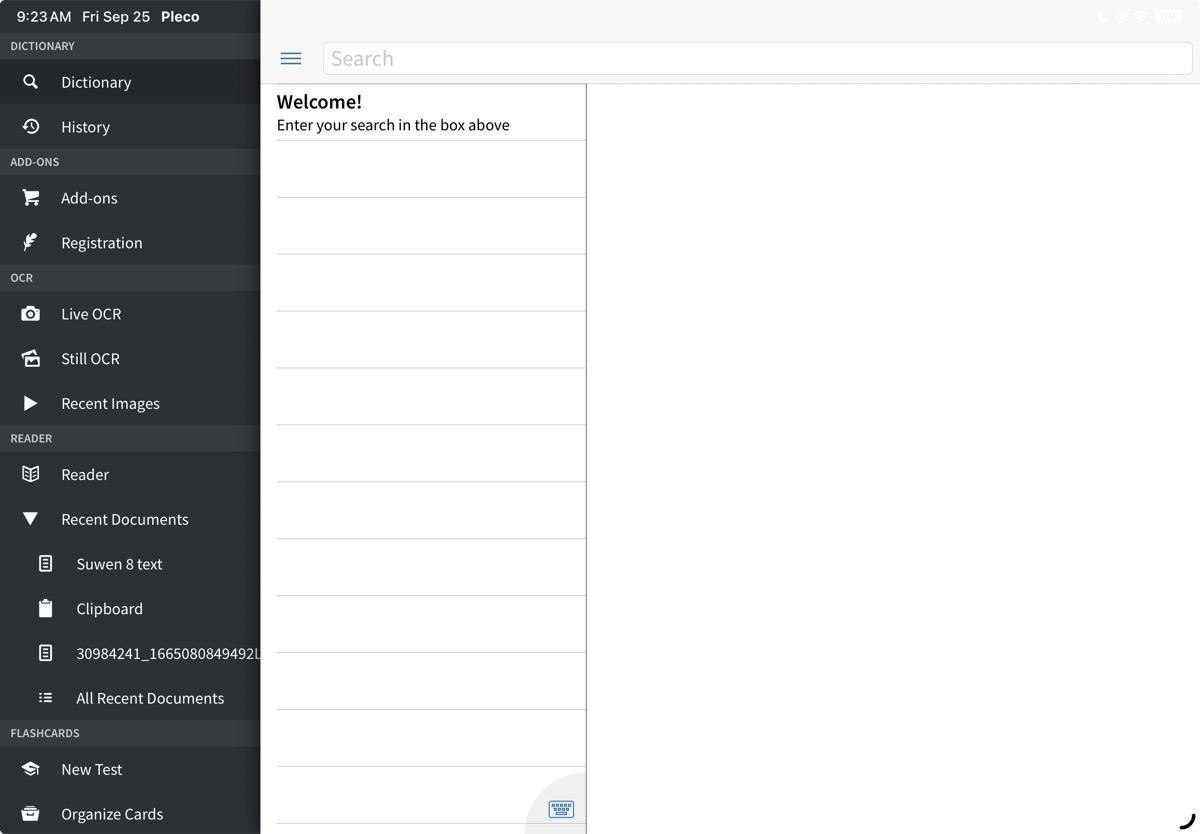
The items that matter for us are Add-ons, Reader, Recent Documents, Live OCR and Still OCR, plus Settings further down.
Installing Pleco
The app itself is free on the App Store. Sabine sets a minimum of three add-ons.
- The Basic Bundle, for the Document Reader inside it. That's the piece that opens a whole text file, like the .txt lesson files from class, inside Pleco, so you can tap characters as you read rather than copying them over a few at a time. The bundle also brings OCR, flashcards and stroke order diagrams. She doesn't use OCR much herself for classical reading, though beginning students who can't yet draw characters do.
- Kroll's Student's Dictionary of Classical and Medieval Chinese. In her words, "This is absolutely essential!"
- Wiseman Chinese Medical Terms, which is free, and ideally the paid Practical Dictionary of Chinese Medicine as well. Whatever you think of Wiseman's terminology, technical medical literature needs a technical medical dictionary.
For more advanced students she also recommends the Grand Ricci, a Chinese-French dictionary with 310,000 entries; the Hanyu Dacidian, if you can read Chinese-Chinese dictionaries; and the free Dictionary of Chinese Buddhist Terms for later literature.
What these cost and where to buy them
Everything is bought inside Pleco, through Add-ons in the menu. The screen opens on three tabs, Available, Updated and Installed, and everything below is laid out in sections.
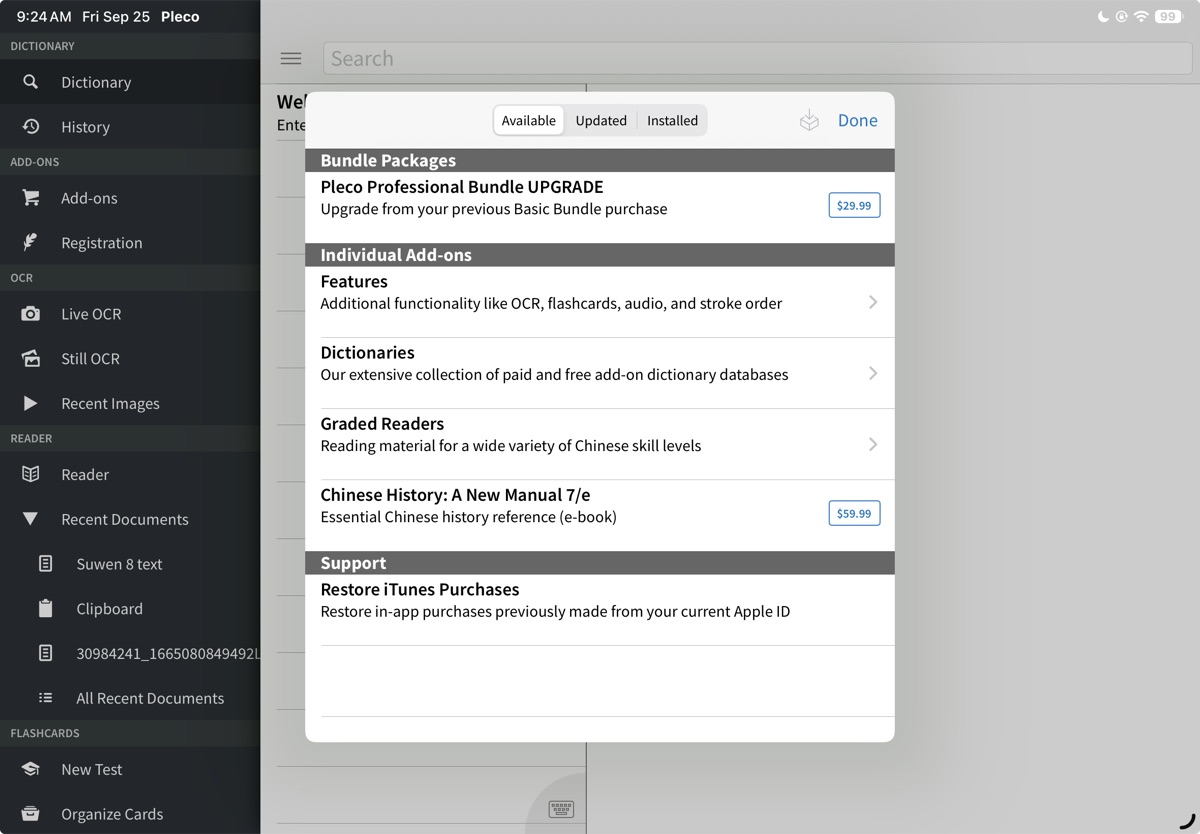
Bundle Packages sits at the top, and that's where the Basic Bundle is. Under Individual Add-ons there are three submenus: Features, Dictionaries and Graded Readers. Restore iTunes Purchases is at the bottom under Support.
Features is where the non-dictionary add-ons live, and it's where to look for the Document Reader on its own, though the description on that line only mentions OCR, flashcards, audio and stroke order.
To check whether you already have the reader, tap the Installed tab. Add-ons you own are listed there, and the Document Reader shows as built-in rather than with a download size.
Tapping Dictionaries opens another set of choices.
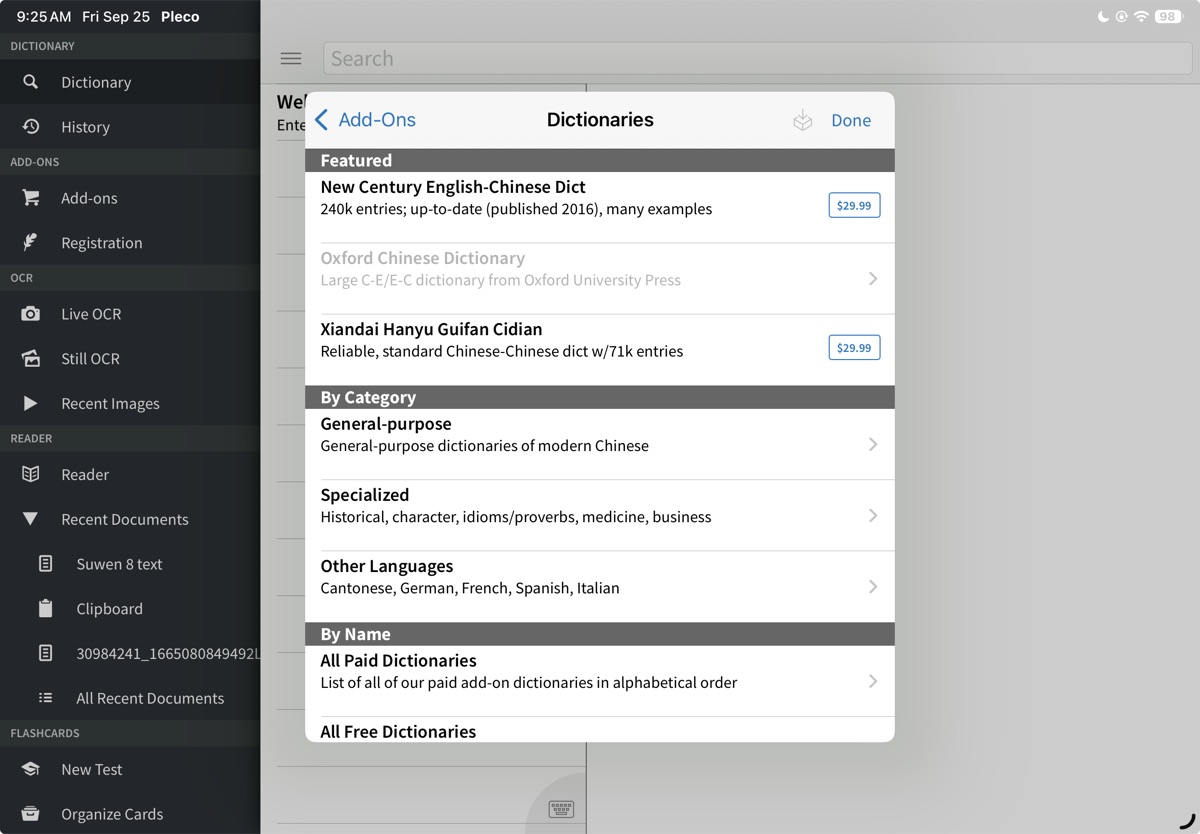
Featured is at the top, then By Category with General-purpose, Specialized and Other Languages, then By Name with All Paid Dictionaries and All Free Dictionaries.
Specialized is where our dictionaries live. Pleco describes it as historical, character, idioms and proverbs, medicine and business, and inside it the entries are grouped under those headings.
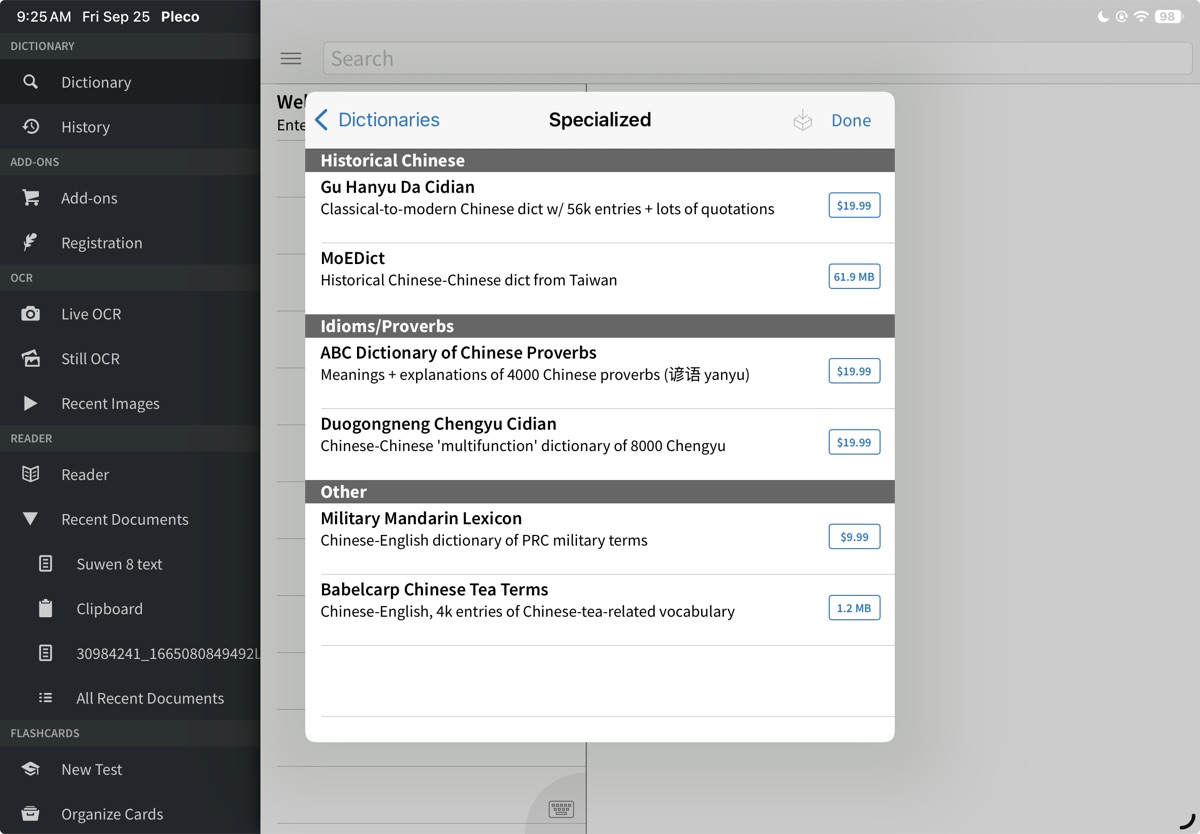
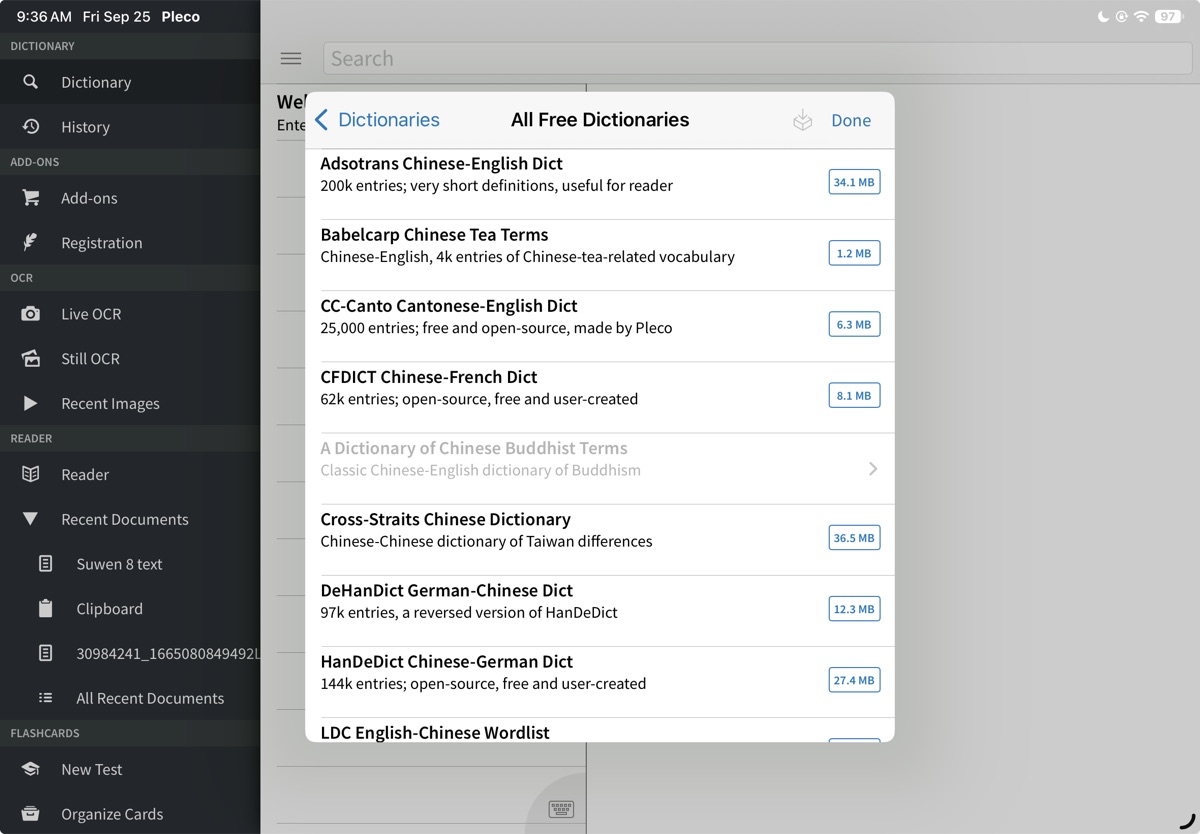
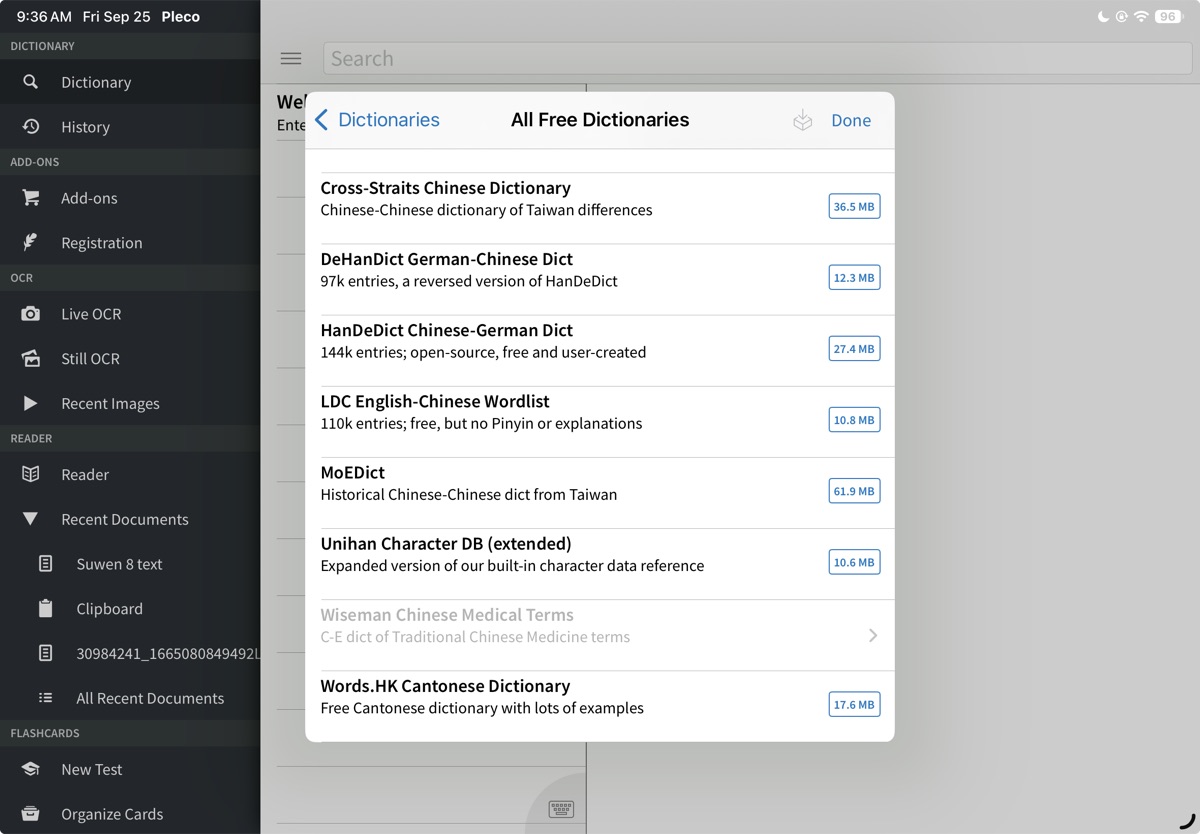
Free dictionaries show a download size where the paid ones show a price. MoEDict at 61.9 MB is free; Gu Hanyu Da Cidian at $19.99 is not.
These screenshots are from my own setup, and they show something important: anything you already own is left out of these category lists. That's why Kroll isn't in the Historical Chinese list above, even though it belongs there. I bought it years ago.
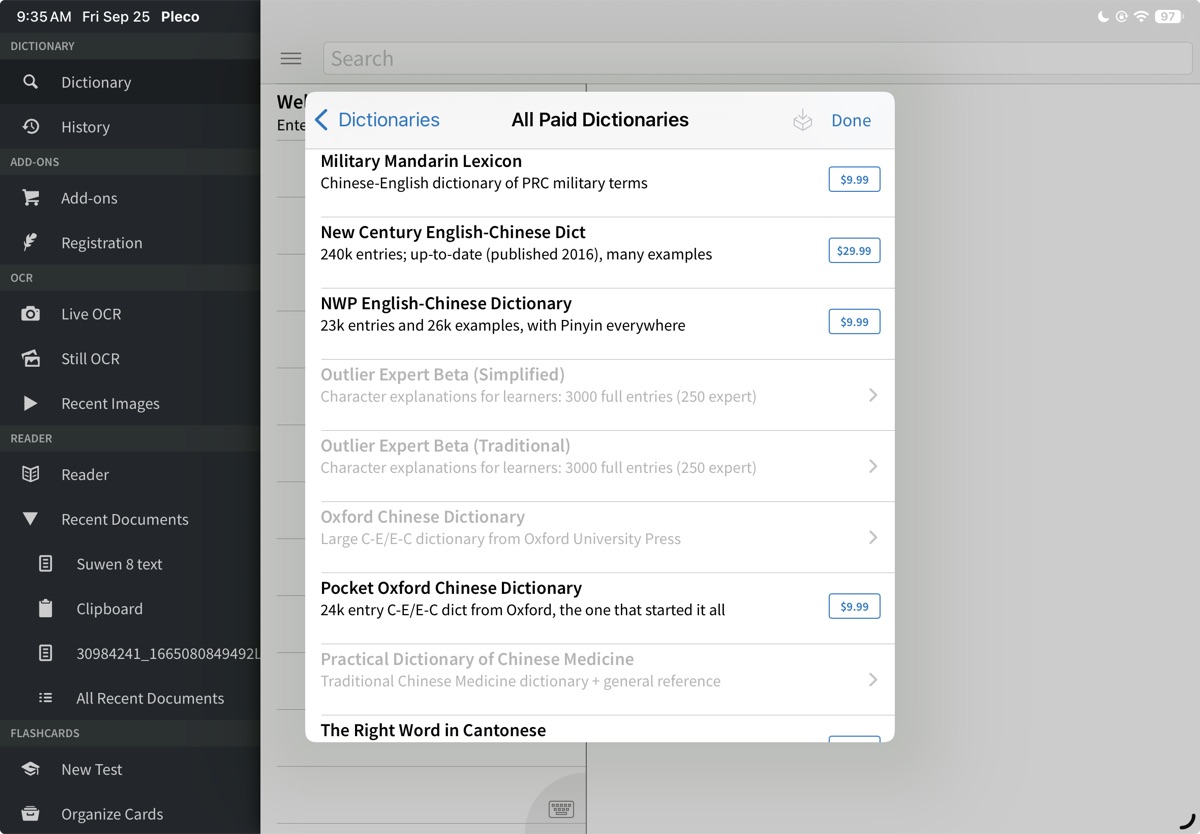
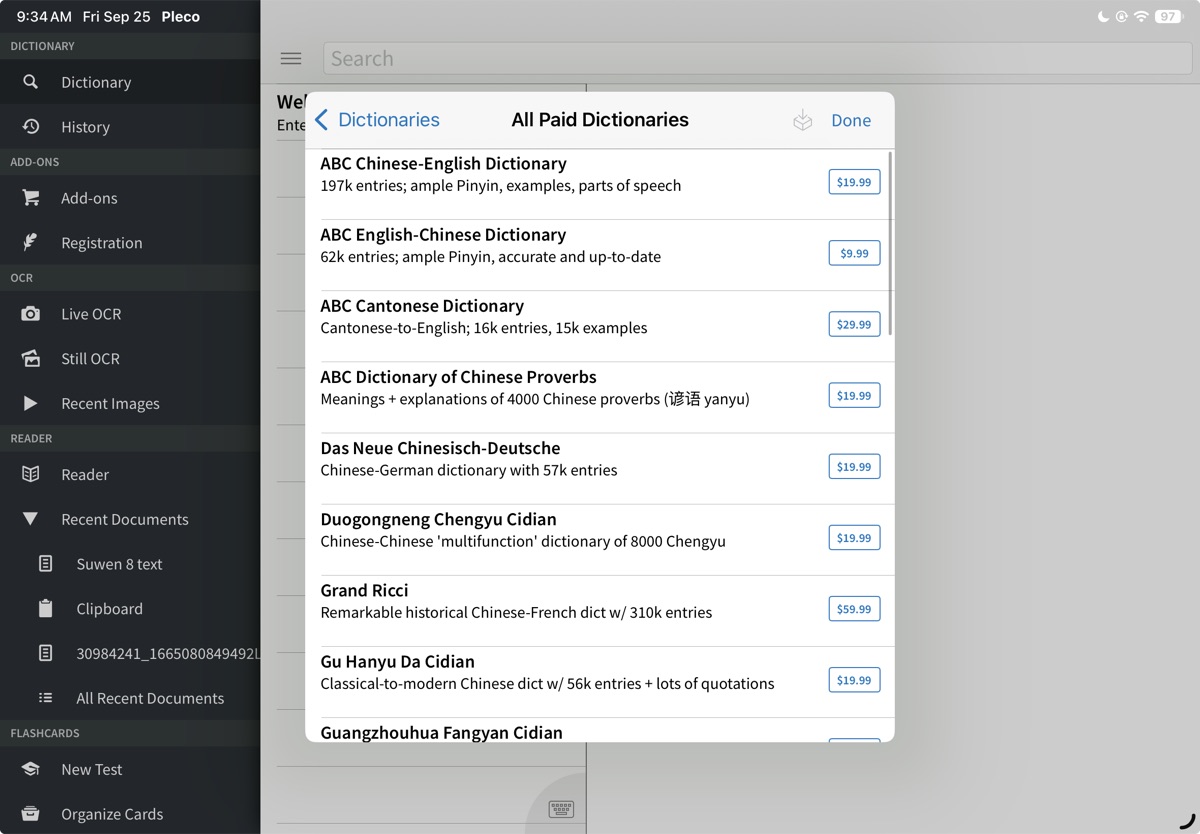
To see everything, including what you already have, use the By Name section on the Dictionaries screen: All Paid Dictionaries and All Free Dictionaries. Both are alphabetical, and anything you already own appears greyed out with an arrow on the right instead of a price or a download size.
The two you want for this class:
Kroll is listed as Student's Dict Classical / Medieval 3/e, described as an Amazing new Classical-to-English dictionary. It's in All Paid Dictionaries, under S.
The free Wiseman glossary is listed as Wiseman Chinese Medical Terms, described as a C-E dict of Traditional Chinese Medicine terms. It's in All Free Dictionaries, under W.
Both lists run longer than one screen, so scroll.
Here is what the items above cost. Prices are US and current as of this writing.
- Basic Bundle, $29.99. Document Reader, OCR, flashcards and stroke order diagrams.
- Document Reader on its own, $9.99, if you want the file reader and nothing else.
- A Student's Dictionary of Classical and Medieval Chinese, $39.99. Appears in Pleco as SCM.
- Wiseman Chinese Medical Terms, free. Appears as CMT.
- Practical Dictionary of Chinese Medicine, $49.99 on Pleco's web store. Appears as PD.
- Grand Ricci, $59.99. Appears as GR.
- Hanyu Da Cidian, $49.99 on Pleco's web store. Appears as HDC.
- Dictionary of Chinese Buddhist Terms, free. Appears as BUD.
The two prices above that say "on Pleco's web store" are from there rather than from inside the app, so check them in Add-ons before you budget. The app charges a few dollars more than the web store for the bundles, and may do the same for those dictionaries.
Pleco also sells the same add-ons through its own web store, where the bundles run about five dollars cheaper. That route asks you to create and enter a registration ID, which is a few more steps. Single dictionaries may cost the same either way, but check.
If you've bought any of this before, on an older device or before reinstalling the app, open Add-ons and tap Restore iTunes Purchases, at the bottom under Support, rather than paying twice.
Arranging Dictionaries in Pleco
Sabine asks students not to skip this step.
- Open the menu and tap Settings, a fair way down.
- Scroll to Manage Dictionaries.
- Tap Reorder, then drag dictionaries by the three lines to the right of each name.
- Move SCM, the Kroll dictionary, to the top.
- Move the modern preinstalled dictionaries to the bottom. They're named something like UNIhanExt, KEY Chinese-English, Pleco C-E and CC-CEDICT, though Pleco changes what it ships with.
- Tap each of those modern dictionaries and slide every blue toggle to grey: Use in dictionary, sticky selection, Use in reader, and the rest of the list. Leave them all switched on for SCM and CMT, the dictionaries you do want.
- Tap Done.
Step 6 is the part people miss. Reordering alone leaves the modern dictionaries in your results. Switching them off removes them. Sabine's view of them: "If there were a way to delete the modern dictionaries, I would make my students do that."
Her own order, if you own the rest of them, is SCM, then Grand Ricci, Hanyu Dacidian, Wiseman's CM terms, the Practical Dictionary of Chinese Medicine, Histoire Ricci, and Buddhist Terms. Everything below that she ignores.
Switching the modern dictionaries off also changes how Pleco highlights text. It highlights by looking for the longest match among the dictionaries in use, so with the modern ones off in the reader, it has far fewer compound words to match against and grabs two and three characters at a time less often.
Traditional characters
Go to Settings, then Languages + Text, and turn on Traditional characters. Pleco then shows traditional first throughout, while still finding anything you search for in either character set.
The same screen has a Chinese font setting, with three choices.
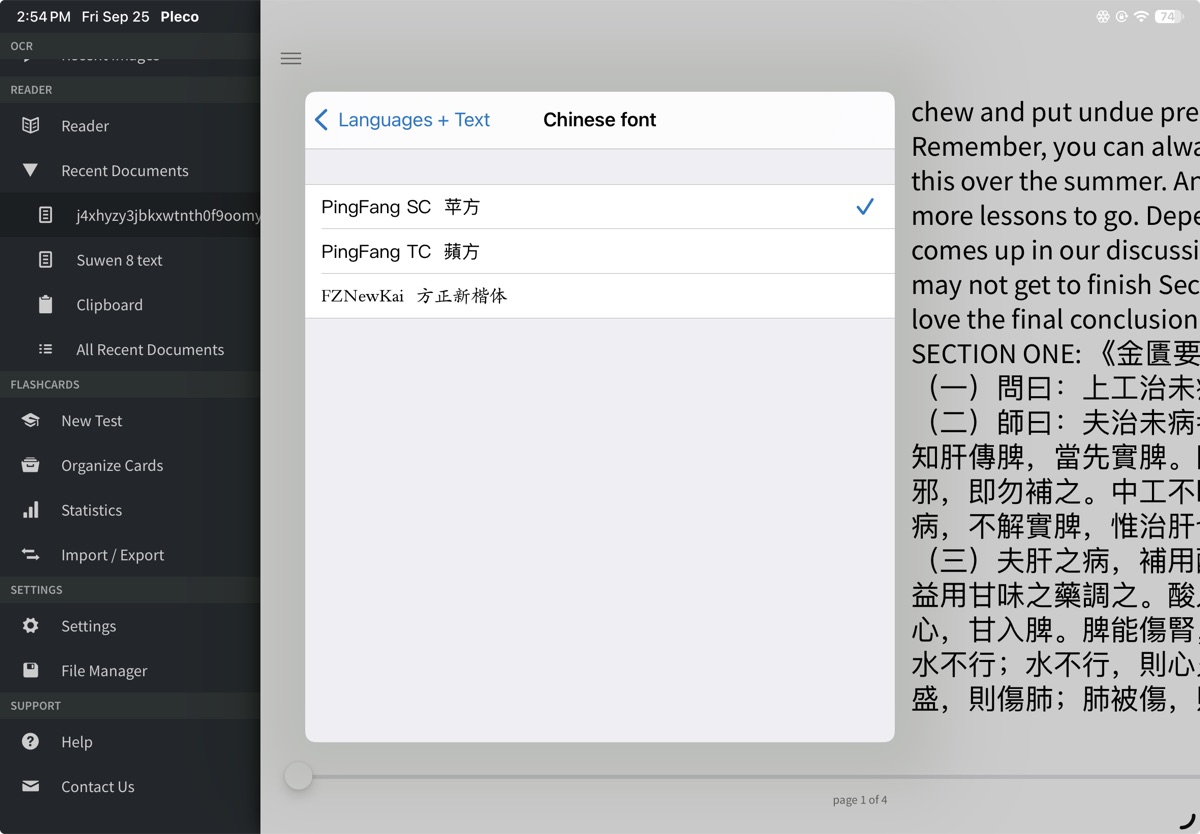
PingFang SC is the default. Switch it to PingFang TC, which draws characters as they're written in Taiwan and Hong Kong rather than on the mainland. The difference shows in characters like 骨, where the small box inside sits on a different side. FZNewKai is a brush-style kai face if you prefer that look, though it isn't a TC font.
Using the dictionary
Ways to search
- Type characters with your device's Chinese keyboard.
- Type pinyin. Tones are optional, and Pleco adds tone-number buttons above the keyboard when you want to narrow things down.
- Type English. The button at the top right of the search bar cycles between Chinese search, English search, and full-text English search, which looks inside definitions rather than at headwords.
- Draw a character you can't type. The search bar offers handwriting input, and it's tolerant of stroke order.
Three search tricks worth knowing:
- ? stands in for one character or one syllable, so 不?不 finds words of that shape.
-
- stands in for none through three characters, so *不 finds entries with 不 anywhere in the first four positions. The two can be combined.
- A # in front of Chinese characters searches the text of definitions rather than headwords, which finds every entry that mentions a term.
Reading an entry
A full entry has tabs across it.
- DICT is the definition.
- STROKE animates how the character is written, if you have the stroke order add-on.
- CHARS shows the character's relatives: its traditional or simplified counterpart, its radical, the components it's built from, and characters that contain it. For classical work this is the tab to know, since variants and components come up constantly.
- WORDS lists words containing the character. Most of these are modern, though a real binome turns up now and then.
- SENTS gives example sentences, which are modern.
The speaker button reads the word aloud using the voice built into your device, at no cost. Press and hold it to switch voices if you've installed others.
In Settings, under Popup Definition, turning on Show zoom button adds a button that shows the selected character full screen, which helps on a phone.
Preparing Digital Files for Pleco
This is for texts you find yourself, on a website or in a document someone sends you. Files that come from class are already prepared, so you can skip to the next section.
Pleco wants a plain text file. Plain text means the characters and nothing else: no fonts, no bold, no page layout, no footnotes. A plain text file's name ends in .txt rather than .docx or .pages, and that ending is what tells Pleco what it's looking at.
There's a second thing to get right, called the encoding. It's the scheme a computer uses to write Chinese characters into a file, and there are several. The one you want is UTF-8. Pick the wrong one and Pleco shows you rows of nonsense.
Three ways to produce the file. Use whichever program you already have.
With Google Docs
The simplest route, and free on any computer.
- Open a new document at docs.google.com and paste your text into it.
- In the menu bar, click File, then Download, then Plain Text (.txt).
- The file lands in your Downloads folder.
There's no encoding menu here, and nothing to choose. Open the file in Pleco and check it looks right before you rely on it.
With TextEdit, on a Mac
TextEdit is already on every Mac, in the Applications folder, and it gives you direct control over the encoding.
- Open TextEdit and make a new document.
- From the Format menu, choose Make Plain Text. The formatting controls disappear, which is the point.
- Paste your text in.
- Choose File, then Save.
- In the save window there's a menu called Plain Text Encoding. Set it to Unicode (UTF-8). If you can't see that menu, step 2 didn't take, so go back and do it.
- Give the file a name and save it. TextEdit adds the .txt ending itself.
With Word
This is Sabine's route.
- Paste your text into a Word document.
- Click File, then Save As. On a Mac it may say Save a Copy instead, if the document lives in OneDrive.
- Save it to a folder on your own computer, like the Desktop, rather than to OneDrive or SharePoint.
- Find the menu of file types, called Save as type on Windows and File Format on a Mac, and change it from Word Document to Plain Text (.txt).
- Name the file and click Save.
- A box called File Conversion appears. Choose Other encoding, then find Unicode (UTF-8) in the list beside it.
- Click OK.
Pages can also save plain text, through File and Export To, but it gives you no encoding choice at all, so you can't be sure what you'll get. If Pleco can't tell, it will ask you which encoding to use. On a Mac, TextEdit is the tool with fewer surprises.
Getting the file onto your phone or tablet
Sabine uses Dropbox: put the .txt in your Dropbox folder on the computer, then on the device open the Dropbox app, tap the three dots to the right of the file name, choose Export, and then Copy to Pleco.
Emailing the file to yourself and opening it on the device works just as well, as does AirDrop between a Mac and an iPhone or iPad. The next section covers what to do once it's there.
Getting a file into Pleco
If the text came to you as a link rather than as a file you prepared yourself, start here.
From a link
Tapping the link may show you the text in the browser, and it may look like nonsense: accented letters and symbols where the Chinese should be. That is not your device and it is not a broken file. The site the file is stored on doesn't tell the browser what kind of text it is, so the browser guesses, and for Chinese it guesses wrong. Pleco reads the same file correctly. Either way, Pleco can't open it until the file is saved on your device.
If you tapped the link inside an email, you're probably looking at the Mail app's own little browser rather than Safari. Look for the Safari compass icon or Open in Safari (usually at the bottom), tap it, and then follow the Safari steps below.
In Safari:
- Press and hold the link until a menu appears, then tap Download Linked File.
- The file goes to the Downloads folder in the Files app.
- Open the Files app, go to Downloads, and press and hold the file. Tap Share.
- Tap Pleco in the row of apps. If it isn't there, swipe to the end of the row and tap More, then find Pleco in the list.
While you're in that More list, tap Edit (at the top) and turn on Pleco, or drag it up into your favorites. From then on Pleco sits in the first row every time and you won't have to hunt for it.
In Chrome it takes a few more taps, and there's no way to stop it opening the text in the browser first.
- Tap the link. The text opens in the browser.
- A bar appears along the bottom of the screen with the file name, its size, and where it came from, and a Save link on the right. Tap Save.
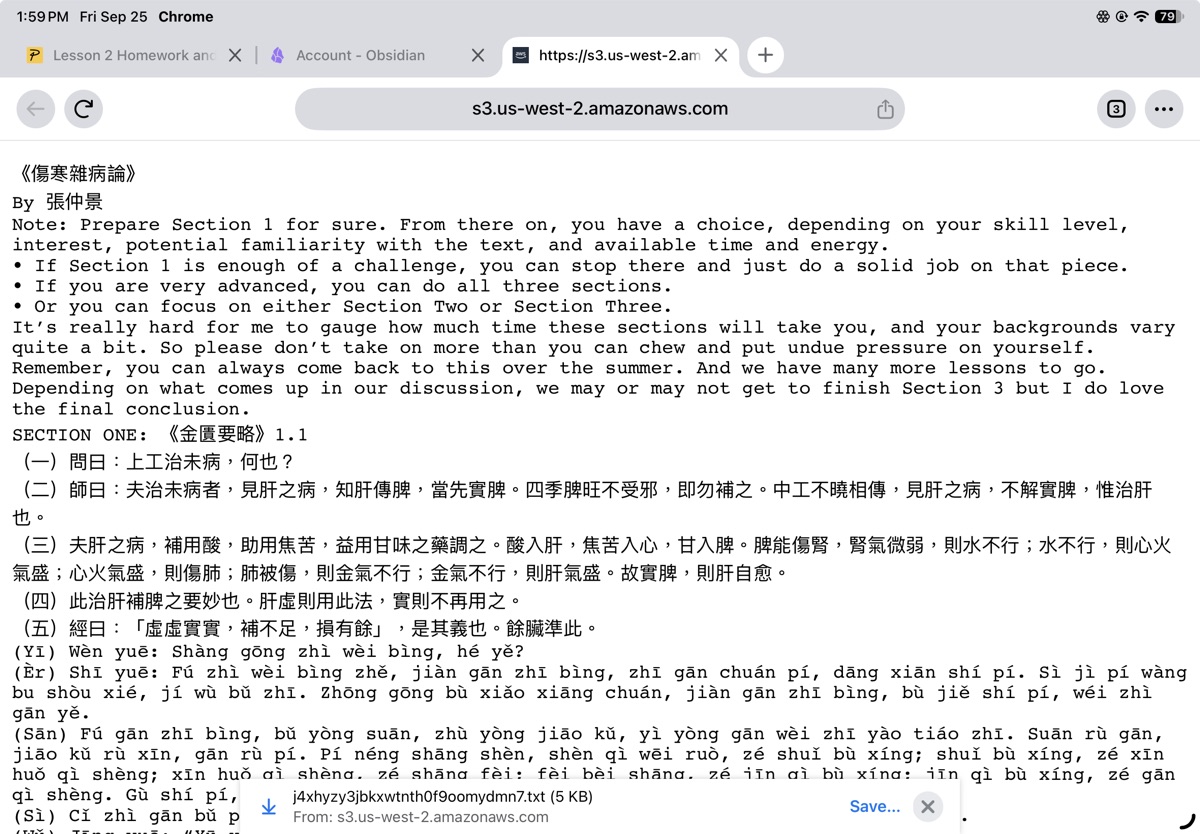
- Choose Files (not Drive), then confirm. This is also your chance to give the file a sensible name, since the name field is editable here.
- The bar changes to Download complete, with OPEN IN on the right. Tap OPEN IN.
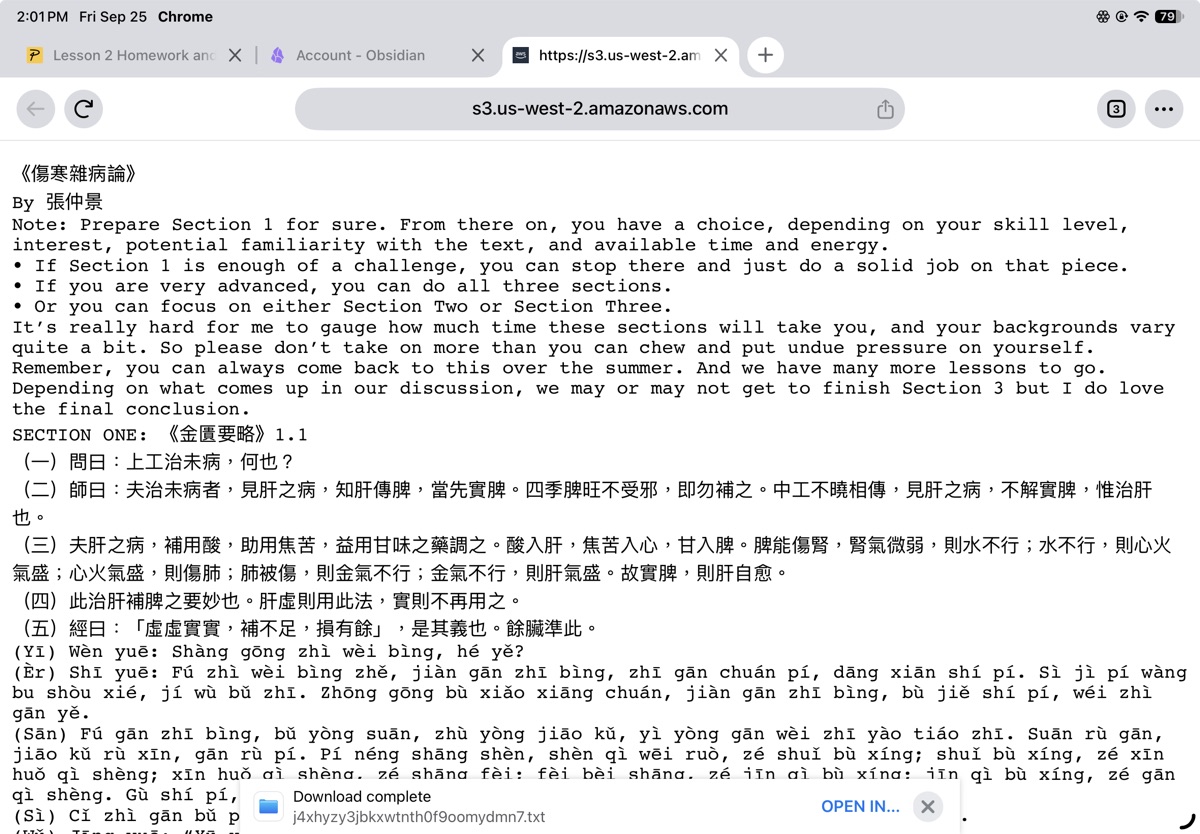
- The share sheet opens. That's the panel of app icons and actions iPhones and iPads use for sending something from one app to another. Pleco probably isn't in the first row of apps. Tap More, the three dots at the end of that row, then scroll down. Pleco tends to sit near the bottom of that list.
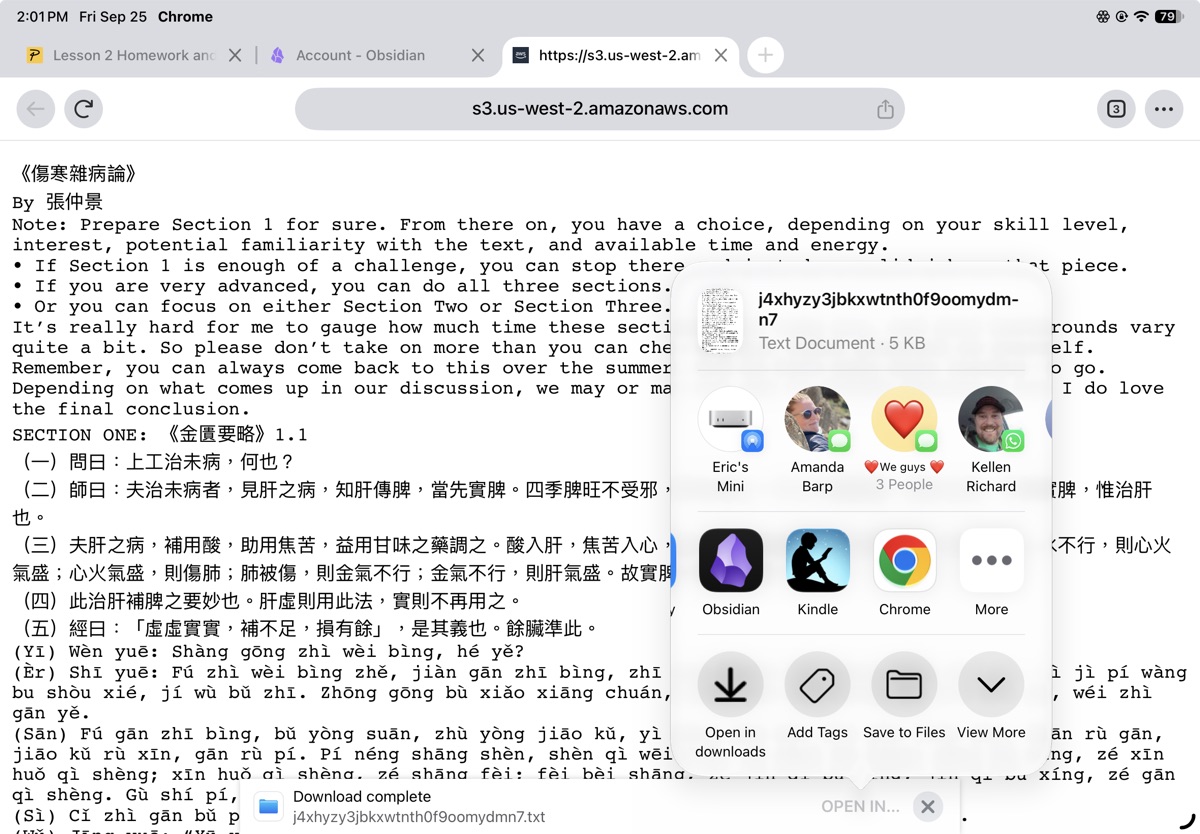
- Tap Pleco. The file opens and appears afterwards under Recent Documents.
Other browsers vary, but the goal is the same in all of them: get the .txt into Pleco, or at least into the Files app, usually in Downloads. If your browser won't give you a file at all, use the clipboard route at the end of this section instead, which skips files entirely.
There's usually a Word version of the same text as well. On iPhone and iPad, Pleco can open that too. On Android it can't, so on Android take the .txt.
If you're at your computer instead, right click the link and choose Save Linked File or Save Link As. Then email the file to yourself as an attachment and open that email on your phone.
Files with unreadable names
The class files are served from Amazon's storage, and they arrive with machine-generated names like j4xhyzy3jbkxwtnth0f9oomydmn7.txt. After a few weeks your Recent Documents list is a wall of nonsense.
You can rename them inside Pleco:
- Open the menu and tap File Manager, in the Settings part of the menu.
- Find the file. Ones that arrived through the share sheet are in Inbox.
- Tap the ⓘ button next to its name.
- Change the name to something like Lesson 2 Section 1, and tap Done.
That same ⓘ button is where you change a file's text encoding, send it to another app, or clear its bookmarks.
It's less work to catch it earlier: when Chrome or Safari asks where to save the file, the name field in that window can be edited before you tap Save.
From an email attachment
- Press and hold the attachment until a menu pops up.
- Tap Share.
- Look for Pleco in the row of app icons. If it isn't there, swipe that row to the end and tap More.
- Tap Pleco.
Pleco opens the text and keeps its own copy in a folder called Inbox.
If Pleco doesn't appear in the Share list at all, press and hold the attachment again, tap Save to Files, save it somewhere you'll remember, and then open it from inside Pleco: menu, Reader, Open Document, and find it in the folder where you saved it.
Trimming a file down
The class files carry more than the Chinese: an English note at the top, and a full pinyin transcription under each section. That's useful when you're getting your bearings and a nuisance when you're tapping through characters.
You can cut what you don't want inside Pleco. Open the file, tap the pencil icon in the toolbar, delete the parts you don't need, and save.
Pleco calls its editor experimental and it's happiest with short files. If it misbehaves, or the file is long, do the trimming on your computer before you send the file over, or use the ⓘ button in File Manager to send the file to another app to edit.
If there's no Open Document in your menu
The free app can only read text you paste in from the clipboard. Opening files is the Document Reader add-on, and until you have it, three things happen:
- The menu has no Reader item with Open Document under it, only Clipboard Reader on its own.
- Sharing a .txt into Pleco from Mail or Files gets you a message saying it can't be opened without an add-on.
- Files already sitting in Pleco, from an earlier attempt or a previous device, won't open, and tapping one sends you to the Add-ons screen.
It's $9.99 on its own, under Add-ons and then Features, or it comes in the Basic Bundle at $29.99, at the top of the Add-ons screen. If you're not sure whether you bought it at some point, check the Installed tab, where it appears as built-in. Once it's active the menu changes: Reader appears, opening onto Open Document, Clipboard Reader and Web Reader, with Recent Documents beneath it.
Anything you brought into Pleco before you bought it is still there and doesn't need importing again. Reader, then Open Document, and it's in the list.
If you'd rather not buy anything yet, the clipboard route at the end of this section is free and works on the same texts.
If the text looks like gibberish
When Pleco can't tell which encoding a file uses, it asks. If it does, tap UTF-8.
If the characters come out as nonsense anyway:
- Close the document.
- Open the menu and tap File Manager, which sits in the Settings part of the menu.
- Open the folder the file is in. Files that arrived through Share are in Inbox.
- Tap the ⓘ next to the file.
- Change the text encoding. For traditional characters try Big5 HKSCS, for simplified GB-18030.
- Open the file again.
If most of the text is fine but a few characters show as empty boxes, that's a font problem with rare characters rather than an encoding problem.
Finding a text again
Pleco remembers where you stopped reading.
- Open the menu and tap Recent Documents for your last few texts, or All Recent Documents for the longer list.
- If it's in neither, look in File Manager, in the Inbox folder.
- The bookmark button at the top right of a document marks your place, and the book icon shows your bookmarks.
The clipboard route, which needs no add-on
- Open the text anywhere you can see it. A browser is fine, even if it looks garbled there, as long as you can select it.
- Press and hold the text, tap Select All, then Copy.
- Open Pleco and tap the menu button.
- Tap Reader, then Clipboard Reader. Without the add-on, Clipboard Reader is in the menu directly.
- The text appears in Pleco. Tap any character to look it up, just as in a document.
- If your device asks whether Pleco can paste, tap Allow Paste.
Pleco keeps a history of what you've copied, reachable through the clock icon at the top.
Looking up individual characters
When you tap, Pleco often highlights two characters rather than one, marked by dots at the top left and bottom right, and gives you the compound's meaning instead of the characters'. Unless it's an obvious medical term, that reading is probably not what your text says. Sabine: "Please do not be sloppy." Move one dot toward the other until you're looking at a single character.
Besides dragging the dots, there are arrow buttons along the bottom of the definition box. The arrow with a line in front of it, |◄, makes the highlight one character shorter, and |► makes it one character longer. The plain arrows ◄ and ► jump to the previous or next word. On a phone, tapping |◄ until one character is left is usually quicker than dragging. If you'd rather have these buttons on the other side, there's a Flip Buttons switch under Settings, then Popup Definition.
If the bubble disappears while you're adjusting, the characters you've selected aren't in any of your dictionaries as a group. Keep shrinking the selection.
Reading a printed page with the camera
This is the OCR module, included in the Basic Bundle or $9.99 on its own, and it appears in the menu as Live OCR and Still OCR. Sabine doesn't find it much use for her own classical reading. For a book or photocopy with no digital version, it's the only way to get the characters into Pleco.
Live camera:
- Tap Live OCR in the menu, under the OCR heading.
- Point the camera at the text. Characters inside the recognition box are read, and the definition appears below. Drag a corner of the box to resize it.
- Tap pause to freeze the recognition, and resume to carry on.
- The buttons along the bottom zoom in and out and turn on the flashlight.
- One button switches between horizontal and vertical text. Pleco usually detects which it's looking at, but vertically set editions sometimes need it set manually.
Still image, which is better for a page you want to work through slowly:
- Photograph the page, or use a picture you already have.
- Tap Still OCR in the menu, then Take Picture, Photo Library, or Image File.
- Drag and pinch the image so the text sits in the recognition area, then tap characters to look them up.
A capture button pulls a whole recognized block of text into Pleco's reader, where you can work through it like any other document and save it as a text file. When a character comes out wrong, press and hold it to correct it.
You can also share a photo from your camera roll straight to Pleco and it opens in still OCR.
Reading Chinese websites inside Pleco
Pleco has a browser of its own, with the same tap-to-look-up behavior as the reader. It's part of the Document Reader add-on.
- Open the menu and tap Reader.
- Tap Web Reader.
- Type an address and tap Go. Tap any character on the page for a definition.
The eyeglasses icon strips the page down to plain text, which is usually easier to read and tap on than the page itself.
The toolbar at the bottom has back, forward, add bookmark and view bookmarks. Bookmarking also offers to save the page as an HTML file inside Pleco, so you can read it later without a connection.
The Chinese Text Project has the Shanghan Lun and the Jingui Yaolue in full, chapter by chapter, free to read, in traditional and simplified.
Android differences
Pleco on Android does the same work. Several things are named or arranged differently.
- The add-on is called Text File Reader rather than Document Reader.
- The reader opens .txt and PDF only. Word files won't open.
- To open a file: menu, then File Reader. If you've opened something before, a small menu appears and you choose the option to open a new file. Your phone's file browser opens, and you go to Downloads.
- Open files from inside Pleco rather than by tapping them in your phone's Files app, or Pleco may lose permission to reopen them later.
- To fix an encoding: with the file open, tap the three dots in the top right, then Change Encoding.
- To get back to a text: menu, then File Reader, then reopen the last file or choose from recent files.
- In Chrome, press and hold a link and tap Download link.
- The clipboard reader is called Clip Reader.
- Dictionaries, searching, entries and single-character lookups all work as described above.
Troubleshooting
- Pleco says you need a reader. That's Document Reader, $9.99, or the Basic Bundle, which contains it.
- You bought it and files still won't open. Open Add-ons and tap Restore iTunes Purchases, under Support at the bottom.
- Word won't save a .txt, or goes back to the document without saving. That's the current Word bug described under With Word. Use TextEdit or Google Docs.
- The Chinese in the class file looks like accented letters and symbols in your browser. That's expected and the file is fine. Save it and open it in Pleco.
- Pleco isn't in the Share list. Save the file to Files first, then open it from inside Pleco.
- A few characters show as empty boxes. That's a font issue with rare characters, not something you did.
- The definitions you're getting are modern and unhelpful. Either the modern dictionaries are still switched on, or the highlight is covering more than one character.
- You can't find a text you had open last week. Check Recent Documents, then File Manager and the Inbox folder.
- The camera reads the wrong characters. Fill more of the frame with fewer characters, hold still for a moment, and check the horizontal and vertical setting.
Pleco's own manual is at iphone.pleco.com, though parts of it describe features that no longer exist. Their user forums are active and the developer answers questions there himself. You can also write to them through pleco.com/contact.html.
Sabine's closing note
"There may be more elegant ways of using Pleco at this point, but this is how I do it and have successfully taught it to hundreds of students, and know that it works." She welcomes suggestions for simplifying the process.
Her post is Setting up Pleco, and her courses are at translatingchinesemedicine.com, where the two-year Triple Crown master class starts once every two years in mid-September, with everyone beginning together.